Object Remover
Draw a box around a person or object — AI finds it, erases it and rebuilds the background behind it.
Drag a box around a person or object. AI finds its outline and removes just that.
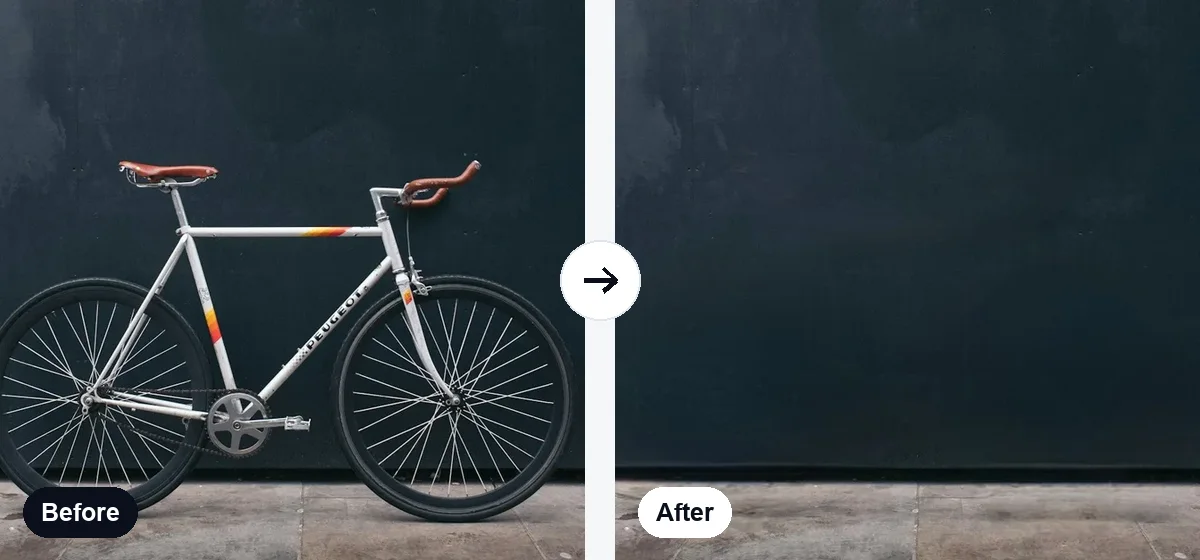
How to remove an object from a photo
- Upload your photo.
- Draw a box around the person or object you want gone — AI finds its exact outline. Or switch to Brush and paint over it.
- Tap Remove with AI. The object is erased and the background behind it is rebuilt.
- Hold Compare to check, then download.
Tips for the best result
- Keep the box snug around one object at a time.
- Include the object's shadow in the box so it goes too.
- For thin things like wires or poles, the brush often works better.
Frequently asked questions
What can I remove?
People, cars, signs, wires, bins, photobombers, stains and other objects. Draw a box around the object and AI finds its outline for you, or paint over it with the brush.
How is this different from the watermark remover?
The object mode finds the shape of the main object inside your box and removes just that, so the rest of the box stays untouched. The watermark remover is tuned for text and logos.
Are my images uploaded?
Only the small area you select is sent to our AI server for removal, processed in memory and deleted straight away — it is never stored. If the server can't be reached, removal runs in your browser instead.
Why is the first removal slower?
The first time, your browser downloads the AI models. After that they are cached and removals are much faster.
The result isn't perfect — what can I do?
Undo, then draw a tighter box or paint over the leftover area with the brush and run again. Large objects over detailed backgrounds may need a couple of passes.
Other free photo tools
 AI
AI
Background Remover
Remove the background from any photo with AI and get a transparent PNG.
Open tool → AI
AI
Passport Photo Maker
Passport & visa photos with white background in 35×45 mm, 2×2 in and more.
Open tool → AI
AI
Watermark Remover
AI finds and removes watermarks, text and logos automatically — or select exactly what should go.
Open tool →
Image Resizer
Change width and height in pixels or by percentage, with aspect lock.
Open tool →
Image Compressor
Shrink JPG, PNG and WebP file size with a quality slider, in batches.
Open tool →
Image Converter
Convert JPG ↔ PNG ↔ WebP in batches, keeping transparency.
Open tool →