Blur Background
AI keeps your subject sharp and blurs everything behind it — a DSLR-style portrait effect in one click.
Hold “Compare” to see the original photo

How to blur the background of a photo
- Upload a photo of a person, pet or product.
- The AI finds the subject and blurs everything behind it.
- Pick Light, Medium or Strong, or fine-tune with the slider.
- Click Download for a full-resolution JPG or PNG.
When to blur instead of remove the background
Blurring keeps the real scene, so the photo still feels natural — great for profile pictures, LinkedIn headshots, real-estate and travel shots, and hiding a messy room or other people behind you. If you need a plain white or transparent background instead, use our background remover.
Frequently asked questions
How does the background blur work?
AI finds the main subject — a person, pet or product — and keeps it sharp, while the rest of the photo gets a smooth blur, like a camera's portrait mode.
Can I control how strong the blur is?
Yes. Use the Blur strength slider or the Light, Medium and Strong presets. You can also darken the background a little to make the subject stand out.
Is my photo safe?
Yes. Your photos are never stored or shared, and are deleted as soon as you're done.
Will the download be full size?
Yes. The download keeps your photo's full resolution (up to 4096 px on the long side) with no watermark.
How long does it take?
Usually just a few seconds.
Other free photo tools
 AI
AI
Background Remover
Remove the background from any photo with AI and get a transparent PNG.
Open tool →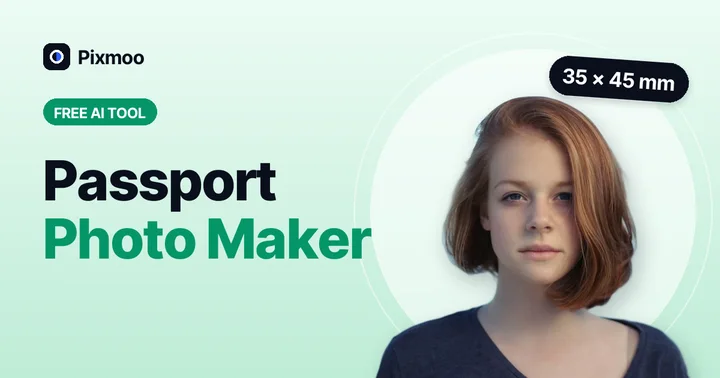 AI
AI
Passport Photo Maker
Passport & visa photos with white background in 35×45 mm, 2×2 in and more.
Open tool →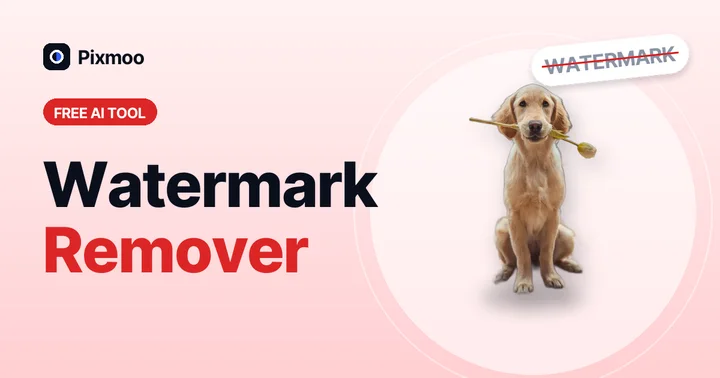 AI
AI
Watermark Remover
AI finds and removes watermarks, text and logos automatically — or select exactly what should go.
Open tool →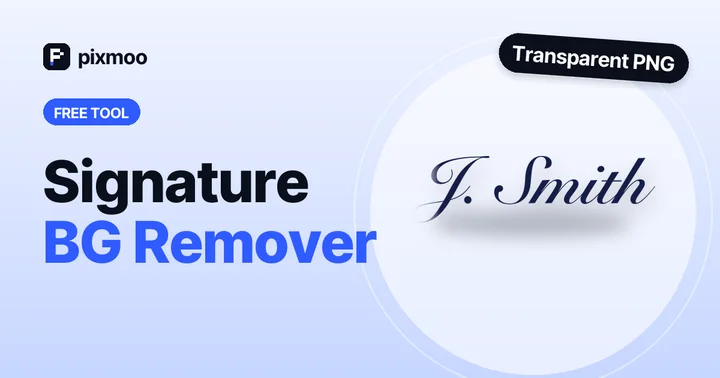
Signature Background Remover
Turn a photo of your signature into a clean transparent PNG.
Open tool →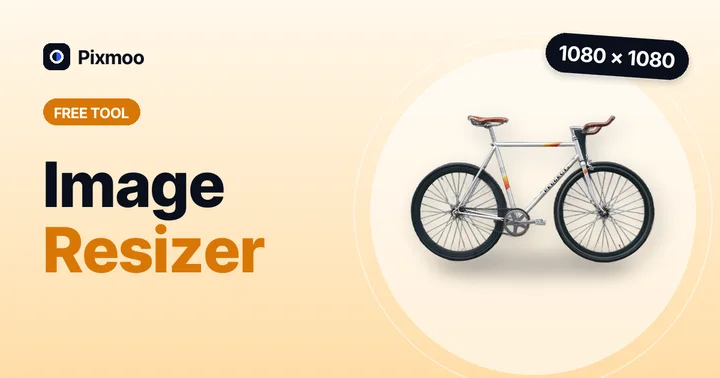
Image Resizer
Change width and height in pixels or by percentage, with aspect lock.
Open tool →
Image Compressor
Shrink JPG, PNG and WebP file size with a quality slider, in batches.
Open tool →
Image Converter
Convert JPG ↔ PNG ↔ WebP in batches, keeping transparency.
Open tool →